Finally i am able to install third party applications on my Samsung Corby-Pro. It is bit tricky but damn easy.
This is how to do it.
1.Download the demo.jar file
2. Open a notepad file and type following:
<html><body><a href="demo.jar">install demo.jar</a></body></html>
3.save it as demo.html
4.Copy both demo.jar and demo.html in you mobile.
5.Now run the demo.html file in your mobile. It will open in Browser and click on install demo.jar.
Note: demo.jar is any jar file. The name demo is chosen just as an example.
Don't worry you will be able to install demo.jar after running demo.html in 5th step.
Now you are done!!
Check this out: Must have Firefox add-ons for Students
Showing posts with label Software. Show all posts
Showing posts with label Software. Show all posts
Wednesday, July 14, 2010


Monday, May 10, 2010
Open .7z zip files on Ubuntu
Recently i encountered .7z zip format file. so to open it is very in Ubuntu just install p7zip by typing following.
now just double click file or type
now just double click file or type
Monday, May 3, 2010
Run .exe on Ubuntu
Well many of us don't want to use windows at all but we are forced to use because of unavailability of some software. You can run your .exe files on Ubuntu (or any other unix based OS, i haven't tested it) by using software called wine.
You can install wine :
Using Terminal:
you can also install using synaptic manager.
Here i am taking uTorrent as an example and you can put any .exe also replace ankit by your username in commands given below.
1.place your .exe on desktop.
2.Right click on desktop and click create launcher
3.write following in the pop-up you receive after creating launcher. as shown below.
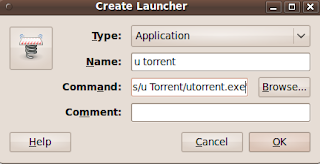
In Command textbox you have to write this

4.You need to make a Directory(Folder) on specified Target(in terminal).
5.Now you need to move your file from Desktop to /home/ankit/.wine/drive_c/Program Files/u Torrent/
to do this, as you have placed your .exe on desktop you need to type this..
6. Now run the launcher and you are done!!
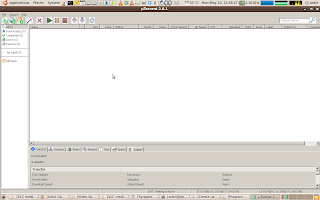
You can install wine :
Using Terminal:
you can also install using synaptic manager.
Here i am taking uTorrent as an example and you can put any .exe also replace ankit by your username in commands given below.
1.place your .exe on desktop.
2.Right click on desktop and click create launcher
3.write following in the pop-up you receive after creating launcher. as shown below.

In Command textbox you have to write this

4.You need to make a Directory(Folder) on specified Target(in terminal).
5.Now you need to move your file from Desktop to /home/ankit/.wine/drive_c/Program Files/u Torrent/
to do this, as you have placed your .exe on desktop you need to type this..
6. Now run the launcher and you are done!!

Tuesday, April 20, 2010
Upload Your files on Google server
Many times you need to upload your files on Internet and then you need to have a link of that file. You can upload your files on google server via google code.
To upload follow these steps...
1. go to code.google.com
2.enter the project hosting section.
3. go to search open source projects.
4. click create new project.
5.Enter the details shown in screenshot
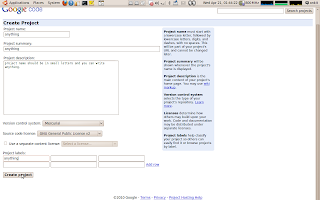
click on create project and then something like this will open...
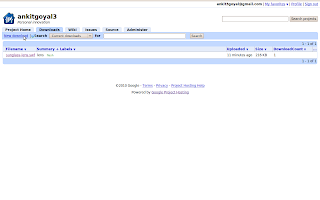 under download section click to new download and it will allow you to upload your file and also by right clicking on the file you can get link location also.
Enjoy!
To upload follow these steps...
1. go to code.google.com
2.enter the project hosting section.
3. go to search open source projects.
4. click create new project.
5.Enter the details shown in screenshot

click on create project and then something like this will open...
 under download section click to new download and it will allow you to upload your file and also by right clicking on the file you can get link location also.
Enjoy!
Saturday, April 17, 2010
Download Flash File(*.swf) From a website using Firefox
Recently i needed to download certain flash files from various websites for my college presentation. I found this very easy way to download flash file from a website using Firefox. Actually while displaying a web page browser first downloads the file, hence you don't need to download it again. You have already downloaded it!!. All you have to do is to save it.
In Firefox..
1. go to Tools >> Page Info.
2. go to media section.
3. choose you file and click Save As..
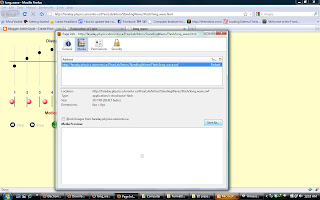
Enjoy!!
In Firefox..
1. go to Tools >> Page Info.
2. go to media section.
3. choose you file and click Save As..

Enjoy!!
Saturday, April 10, 2010
Error while setting up Apache fixed
I got the following error on running
sudo /etc/init.d/apache2 restart
* Restarting web server apache2
apache2: Could not reliably determine the server's fully qualified domain name, using 127.0.1.1 for ServerName
... waiting apache2: Could not reliably determine the server's fully qualified domain name, using 127.0.1.1 for ServerName
to fix it you need to edit httpd.conf file. type
sudo gedit /etc/apache2/httpd.conf
this will be a blank file by default. simply add the following line.
ServerName localhost
save the file and exit from gedit.
Finally restart the apche
sudo /etc/init.d/apache2 restart
This will probably fix your problem also.
hope it helps...
sudo /etc/init.d/apache2 restart
* Restarting web server apache2
apache2: Could not reliably determine the server's fully qualified domain name, using 127.0.1.1 for ServerName
... waiting apache2: Could not reliably determine the server's fully qualified domain name, using 127.0.1.1 for ServerName
to fix it you need to edit httpd.conf file. type
sudo gedit /etc/apache2/httpd.conf
this will be a blank file by default. simply add the following line.
ServerName localhost
save the file and exit from gedit.
Finally restart the apche
sudo /etc/init.d/apache2 restart
This will probably fix your problem also.
hope it helps...
Thursday, February 11, 2010
Run Your HD Videos With no Trouble anymore
I was very much frustrated by not being able to run Hi-def movies on my any of players so i went on a quest for the search of a player that serves my needs and i got this....http://mirillis.com/splash.html (Download link)....This is a cool free player that will run all your Hi-def movies without any trouble.


Saturday, January 30, 2010
Disc Partition
I tried to install a big software but space in my C drive was less so what i needed was more space.
It is damn easy if it would have been drive other than C.
Normal Partition can be done using Disc Management (inbuilt utility in Windows Vista and Windows 7). There is no need of any third party software.
But to perform any kind of changes no matter on what drive can be done easily by using EASEUS Partition Master Home Edition software which can be downloaded for free from
http://www.download.com/Easeus-Partition-Manager/3000-2248_4-10863346.html?tag=mncol;pop&cdlPid=10982635
It will look something like this..
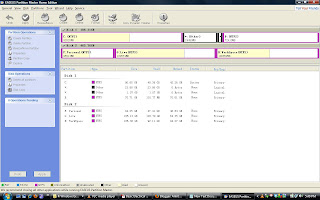
First of all, re-size the drive to be shrink and drag it past the Unallocated space appeared after resizing.
BUT: You will not be able to drag it past the other drives in between two drives. If not sure about what they are and want to be on safe side....(Optional:: If other drives are present)
First of all copy both(one by one) into unallocated space and it'll ask you where to place the copy of it. All you have to do it is to place it beyond unallocated space thus bringing it on the right side of unallocated space.
Now delete the previous copies of them.
now simply resize the C drive and use all unallocated space.
Click Apply.
It may require restart and will boot in Easeus Master Boot mode and it'll make the required changes. You don't have to do anything. It'll take time depending on space and data so be patient.
Voila! You are Done.
It is damn easy if it would have been drive other than C.
Normal Partition can be done using Disc Management (inbuilt utility in Windows Vista and Windows 7). There is no need of any third party software.
But to perform any kind of changes no matter on what drive can be done easily by using EASEUS Partition Master Home Edition software which can be downloaded for free from
http://www.download.com/Easeus-Partition-Manager/3000-2248_4-10863346.html?tag=mncol;pop&cdlPid=10982635
It will look something like this..

First of all, re-size the drive to be shrink and drag it past the Unallocated space appeared after resizing.
BUT: You will not be able to drag it past the other drives in between two drives. If not sure about what they are and want to be on safe side....(Optional:: If other drives are present)
First of all copy both(one by one) into unallocated space and it'll ask you where to place the copy of it. All you have to do it is to place it beyond unallocated space thus bringing it on the right side of unallocated space.
Now delete the previous copies of them.
now simply resize the C drive and use all unallocated space.
Click Apply.
It may require restart and will boot in Easeus Master Boot mode and it'll make the required changes. You don't have to do anything. It'll take time depending on space and data so be patient.
Voila! You are Done.
Sunday, December 6, 2009
Notepad
A complete Notepad application with all basic notepad functions was made using Java.It was my one of the first projects in Java.

You Can Download Source Code from http://dl.dropbox.com/u/2558114/notepad1.rar
Subscribe to:
Posts (Atom)


